How a wedding photo QR code works
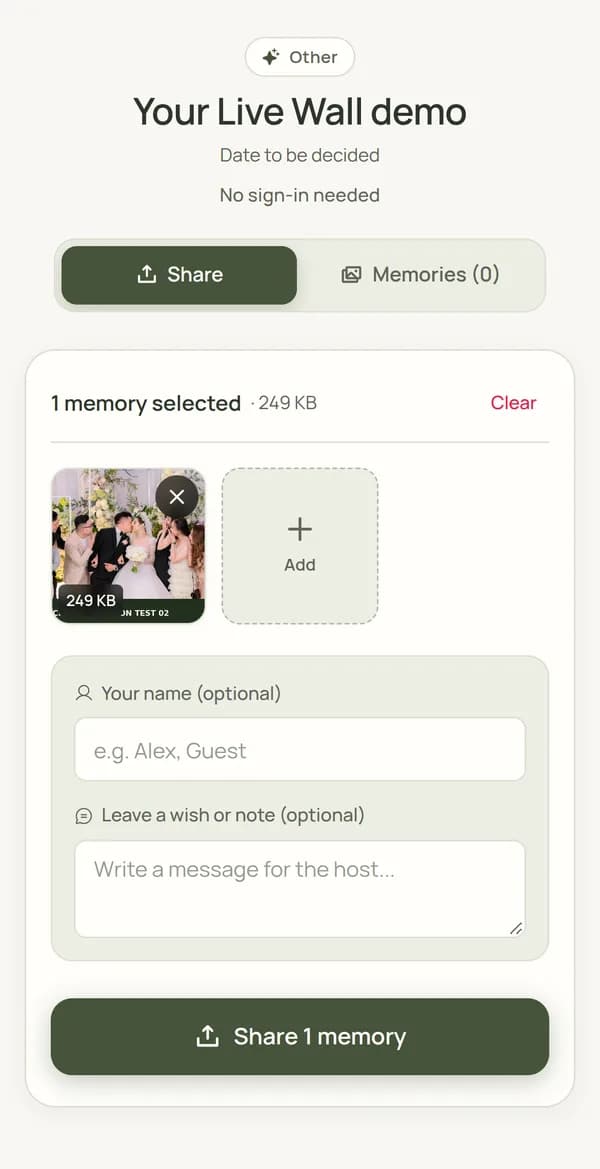
The QR code is just a link. When a guest points their phone camera at it, their browser opens an upload page for your wedding. They pick photos or videos from their camera roll, or take a new one, and tap upload. The files land in one gallery that you control.
What makes or breaks it is what happens after the scan. Every extra step loses guests: installing an app, creating an account, typing an email address, waiting for a code. The older relatives you most want pictures from are the first to give up.
- Guest scans the code with the normal phone camera
- Upload page opens in the browser, no app install
- Guest selects several photos or videos at once
- Files upload in original quality to your private gallery
What to look for in a QR photo sharing tool
Most tools look the same on their homepage. These are the questions that matter on the night:
- Does the guest need an app or an account? Each one cuts participation.
- Are uploads kept in original quality, or compressed?
- Does it accept videos, and how long?
- Can you review and remove uploads before others see them?
- Can guests still upload the day after? Many people only sort their photos on the way home.
- Is the gallery private, and who can see it?
- Can you show selected photos on a screen during the reception?
- What happens to the photos if you stay on a free plan, and for how long are they kept?
Where to put the QR code
One sign at the entrance is easy to miss. Guests scan when the code is in front of them at a moment they have their phone out anyway.
- Each table, on a small card next to the place names or menu
- The bar, where people wait with their phones in hand
- Next to the guest book or welcome sign
- On the screen or Live Wall, if you have one
- In the thank-you message you send the day after
What to write on the sign
Tell guests what they get and that it takes seconds. Keep it to one line plus the code. For example: "Took a photo? Scan to add it to our album. No app needed." Avoid instructions that make it sound like a task.
If your ceremony is unplugged, say so separately and invite photos from the reception onward, so the two messages don't contradict each other.
Don't stop collecting on the night
A lot of the best photos arrive after the wedding. Guests are busy celebrating, the venue Wi-Fi is weak, and many prefer to pick their favourite shots the next morning. Send the same link the day after with a short note, such as "Got photos from last night? You can add them here." Make sure the tool you choose keeps uploads open after the event.
How CandidCrowd handles it
CandidCrowd is the tool we build for exactly this. Guests scan your QR code or open your link, choose photos and videos, and upload without an app or account. Uploads are kept in original quality in a private gallery. You can review what comes in, choose photos to show on a Live Wall during the event, and keep collecting after the wedding on a paid plan. The free plan (30 photos and 3 videos, open for one day) is enough to set it up and test it yourself before deciding anything.
Frequently asked questions
Do guests need to download an app to use a wedding photo QR code?
Not with a browser-based tool like CandidCrowd. The QR code opens an upload page in the phone's browser. Some other services do require an app, so check before you print the signs.
Can guests upload videos as well as photos?
With CandidCrowd, yes, when the host has video uploads enabled. Check the limits of whichever tool you choose, because some only accept photos.
Will the photos be compressed?
CandidCrowd stores the original files guests upload. Sharing through messaging apps usually compresses photos, which is one reason to collect them in a dedicated gallery.
Can I make the QR code myself?
You can generate a QR code for any link, but the code itself is the easy part. What matters is the upload page behind it: no app, no account, multiple files at once and original quality.
Try it with your own event
Create a free event, scan your own QR code and upload a photo to see exactly what your guests will see.
CandidCrowd makes one of the tools discussed in this guide.
More guides
- How to collect photos from wedding guests (without chasing anyone)
- Google Photos shared album for a wedding: does it work?
- Disposable cameras at weddings: the charm, the catch and the alternative
- Live photo wall for weddings: how it works and is it worth it?
- How to ask wedding guests for their photos: message templates
- Office Christmas party ideas that guests can actually join